How to Turn a Webinar Into Short Clips for LinkedIn, YouTube and Instagram
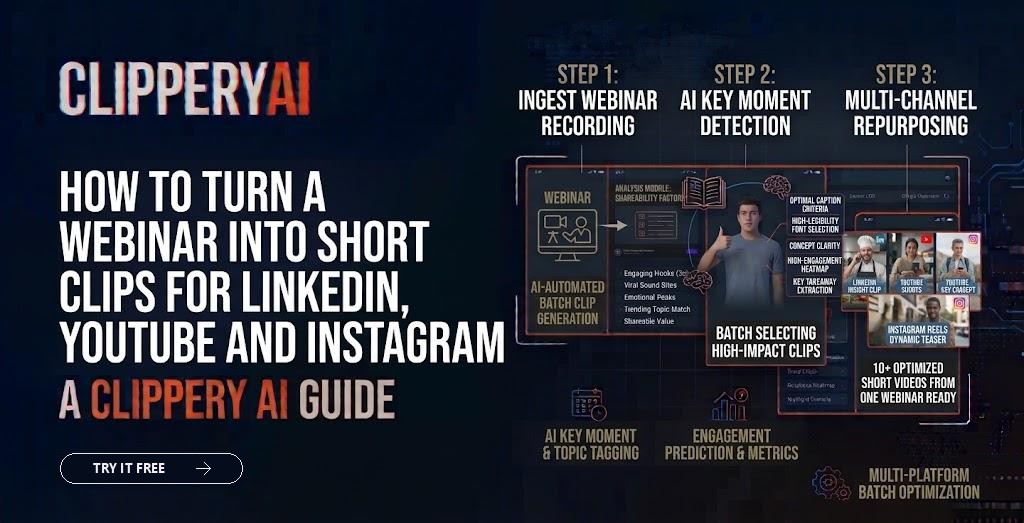
Your team spent weeks on a webinar. Slides, speakers, promotion, a live Q&A. On the day, a few hundred people showed up. Then the recording went on a landing page and quietly stopped getting views.
That recording is full of short, useful moments your buyers would actually watch, if they saw them in their feed. This guide shows how B2B marketers can turn one webinar into a few weeks of social video. For a full 30-day plan that also covers blog recaps, emails and sales assets, see our guide to repurposing webinar content.
Why repurpose webinars into short clips?
Repurposing webinars into short clips extends the life of content you've already paid for, reaches people who didn't attend, and gives your sales and social teams credible, expert-led video to share. A single strong webinar can supply weeks of posts.
Clips also work as promotions. A sharp 45-second clip from your speaker is often the best ad for the full replay or the next live session.
Which webinar moments make the best clips?
The best webinar clips are moments where one speaker makes one clear, useful point that a buyer would care about without seeing the slides. Look for:
- A surprising stat or result, explained in plain words
- A quick tip or framework someone could use today
- A strong opinion about a common industry practice
- A clear answer to an audience question from the Q&A
- A short customer story with a before and after
- A myth the speaker corrects
The live Q&A is often the richest section. Audience questions are real buyer questions, and short direct answers make natural clips.
Step-by-step: turning a webinar into clips
1. Get the cleanest recording you can
Download the highest-quality version from your webinar platform. If you can record speaker video separately from the slide share, do it. Speaker-focused footage reframes to vertical much better than a full-screen slide deck.
2. Mark the moments
Skim the transcript and note timestamps for strong points and good Q&A answers. Ask the speakers which moments they think landed best.
3. Trim tightly
Start on the point, not the "So, great question, thanks for asking." End on the takeaway. For LinkedIn, 30 to 90 seconds is a comfortable range for most clips.
4. Choose the right format for each channel
| Channel | Format | Tip |
|---|---|---|
| LinkedIn feed | Square 1:1 or vertical 9:16 | Add a short post explaining why the clip matters |
| YouTube Shorts | Vertical 9:16 | Use a searchable title phrased like a question |
| Instagram Reels | Vertical 9:16 | Keep captions clear of the bottom overlay |
| Website and email | 16:9 or 1:1 | Embed clips on the replay page and in nurture emails |
See our full guide to social media video aspect ratios for specs.
5. Add captions and light branding
Captions are essential, since most LinkedIn videos are watched without sound. A small logo or speaker name is enough branding. Avoid heavy templates that cover the speaker.
6. Write a post for each clip
On LinkedIn especially, the text above the video matters. Write one or two lines on the problem the clip addresses, then link to the full replay or the next event in the comments or post.
7. Schedule clips over several weeks
Two or three clips a week from one webinar keeps your feed active without overloading followers. Share clips with speakers and sales reps so they can post from their own profiles too.
Webinar clip mistakes to avoid
- Clipping slides with no speaker on screen, which reads poorly on mobile
- Leaving in long intros, housekeeping and "can everyone hear me?"
- Posting clips that only make sense if you saw the previous slide
- Forgetting to link back to the full replay or a next step
- Using only the speaker's slides as captions instead of what they actually said
How ClipperyAI helps B2B teams clip webinars
ClipperyAI takes a webinar recording, finds complete moments with a clear start and payoff, keeps the current speaker centered when reframing, and adds word-timed captions. You can export each clip in 9:16, 1:1 or 16:9, so the same moment works for LinkedIn, Shorts and your website. Your original upload is deleted once clips are produced, and finished clips are removed after your plan's retention period.
Learn more on our webinar clips page, see how it works, or compare plans. Running a podcast too? Read how to make podcast clips.
Key takeaways
- Webinar recordings contain weeks of short, expert-led social content.
- The best clips are single clear points, especially answers from the Q&A.
- Speaker-focused footage works far better than slides on mobile.
- Pair each clip with a short post and a link to the replay or next event.
Frequently asked questions
How long should a webinar clip be for LinkedIn?
Most webinar clips work well between 30 and 90 seconds. Long enough to make one complete point, short enough to finish in the feed.
Can I clip a webinar that's mostly slides?
You can, but it's harder. Pick moments where the speaker explains something clearly in words, and use square or horizontal formats if the slide needs to be visible.
Should I post clips from the company page or employees' profiles?
Both. Company pages give a consistent home for clips, while speakers and team members sharing from their own profiles often reach more people.
How soon after the webinar should I post clips?
Start within a few days while the topic is fresh, then keep posting clips over the following weeks. Strong evergreen moments can be reshared months later.