How to Repurpose Webinar Content into a Month of Marketing
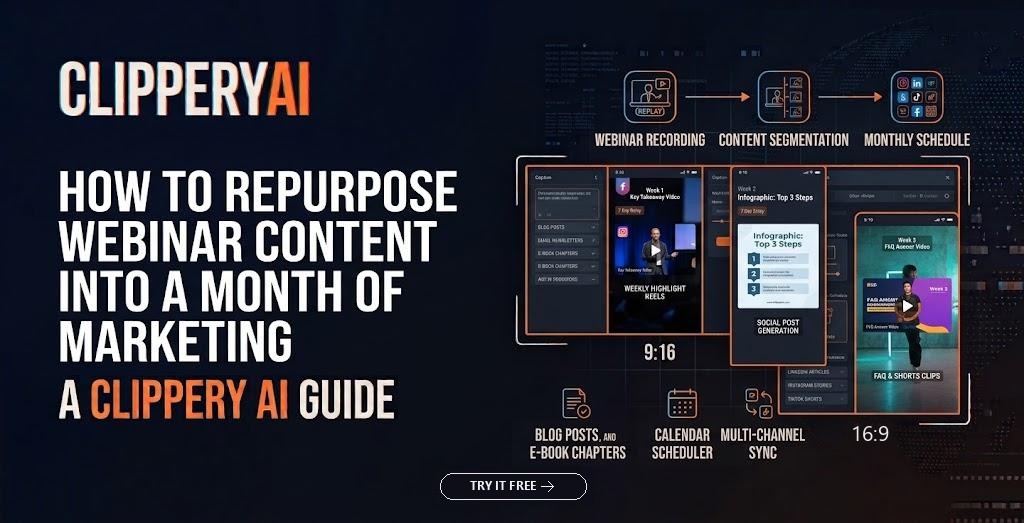
To repurpose webinar content, treat the recording as raw material rather than a finished product. Pull out short, self-contained clips for social media, turn the strongest explanations into a blog post, use key moments in follow-up emails, and give your sales team a few clips to send prospects. Planned as a schedule, one hour-long session can keep your channels supplied for about a month.
The hard part isn't ideas. It's that the recording sits in a shared drive while everyone moves on to the next launch. This guide gives you a process and a 30-day content repurposing plan so that doesn't happen.
Why repurpose webinar content instead of creating something new?
A webinar already has the expensive parts done. Subject-matter experts set aside time, the talking points went through review, and someone rehearsed the demo. Recording a fresh video on the same topic would mean asking those people for their time again.
It also reaches the people the live session missed. Plenty of registrants never show up live, and many people who'd benefit never registered. A short clip of the clearest answer from your Q&A can reach them in a feed they already scroll, which makes it some of the most practical B2B video content you can produce.
Finally, a webinar repurposing strategy gives a small team consistency. When the calendar fills with launches and deadlines, a backlog of approved clips keeps your channels active.
Step 1: Inventory the recording
Skim the recording once with a simple log open: timestamp, what was said, and what kind of moment it is. To make it concrete, imagine a payroll software company that ran an hour-long webinar on year-end payroll compliance for small-business owners. Its log might include:
- A definition: a 40-second explanation of the difference between W-2 employees and 1099 contractors.
- Mistakes to avoid: the host's list of year-end deadlines small businesses often miss.
- A demo: a short walkthrough of generating year-end forms in the product.
- An audience question: "What happens if I misclassified someone last year?"
- An opinion: a guest accountant arguing that businesses should review payroll in October, not December.
- A story: a customer anecdote, shared with permission, about catching an error before filing.
Each is a unit a stranger could understand without having watched the first 30 minutes. That's what you're looking for.
Step 2: Match each moment to a format
Not every moment should become a video clip. Use a simple map:
| Moment type | Best format | Where it goes |
|---|---|---|
| Definition or explanation | Short captioned clip plus a blog section | LinkedIn, Shorts, Reels, blog |
| Audience question and answer | Clip plus an FAQ entry | Social, FAQ page, sales follow-up |
| Product demo | Wide 16:9 clip | Website, email, sales enablement |
| Strong opinion | Vertical clip with a plain on-screen title | LinkedIn, TikTok, Reels |
| Checklist or list of mistakes | Blog section or email | Newsletter, blog |
| Customer story | Clip, with approval | Sales decks, social, case study |
The written recap deserves special attention. When you turn a webinar into a blog post built around the questions attendees asked, it can be found in search for those same questions, which a video file alone rarely manages. Write it as a real article with headings and direct answers, not a pasted transcript.
Step 3: Build a 30-day schedule
This schedule fits a one-hour session with a solid Q&A. Scale it to what your team can review.
Week 1: Follow-up and first clips
On day one, send the webinar follow-up email to all registrants with the on-demand replay link and one embedded clip as a preview. Over the next four days, post one clip a day on your main channel. Start with the clearest explanation, not the flashiest moment, and include the replay link in each description. This is where on-demand webinar promotion does most of its work.
Week 2: The written recap
Publish the blog post answering the three or four best audience questions, with a clip embedded under each answer where it helps. Post two more clips that point to the article.
Week 3: Sales and partners
Give sales a short list of clips matched to common objections, so a rep can send a 45-second answer instead of a long email. If a partner co-hosted, send them their speakers' clips to share with their audience.
Week 4: Bridge to the next event
Use your remaining strong clips to promote the next webinar. A clip that ends on an open question ("we'll cover the tax side next month") works well as a teaser. Close the month with a newsletter roundup of everything you published.
Formatting webinar clips for LinkedIn, Shorts and Reels
Webinar recordings have quirks. Most platforms record a small speaker video beside a large slide, and the slide is often where the meaning lives. Decide what each clip needs viewers to see before cropping everything to vertical.
Talking-head moments such as opinions, stories and answers work well in 9:16 for Shorts and Reels. Slide-dependent moments like a chart or a demo are better in 1:1 or 16:9, and wider formats are common for webinar clips on LinkedIn. Whatever the shape, add captions, since many professionals watch at work with the sound off, and give each clip a plain title stating the question it answers ("Can you fix a misclassified contractor?"). For opening-line ideas, see our guide to writing hooks for clips from long recordings.
Get approvals before anything goes public
Webinars involve more people than most marketing assets, so build sign-off into the plan:
- Guest speakers should approve clips that feature them, especially opinions that could be read out of context.
- Attendee names or faces visible in chat or Q&A panels should be removed unless you have consent.
- Customer names, logos and results mentioned on air should be cleared with the customer.
- Roadmap slides or pricing details may have been fine for a registered audience but not for public posts.
- Regulated industries such as finance, healthcare and legal services may need compliance review for each clip.
Clearing everything in one batch at the start is far faster than chasing approvals clip by clip.
How to repurpose webinar content with ClipperyAI
The slowest step in this process is usually the first: finding and cutting the moments. ClipperyAI is built for that part. Upload the full recording (MP4, MOV, WebM, MKV or M4V) or paste a link to a video you own, choose how many clips you want and the format, and it looks for complete, self-contained answers rather than slicing the session into equal chunks. Each clip is reframed around the speaker and gets word-timed captions. The webinar and talks page explains the workflow for long sessions.
A few details matter for webinars specifically. The free plan accepts recordings up to 30 minutes, Starter up to 60 and Pro up to 180 minutes with up to 20 clips per video, so most one-hour sessions call for Starter or Pro; see ClipperyAI pricing for the full comparison. The uploaded original is deleted once clips are produced, and finished clips are removed after 3, 7 or 14 days depending on the plan, so download them promptly. The privacy policy covers how data is handled, which is worth sharing with anyone reviewing tools for internal recordings.
ClipperyAI handles the clips. The blog post, emails and sales notes are still yours to write. If you're comparing options, our checklist for choosing an AI clip maker includes a simple 30-minute test.
How to measure whether repurposing is working
Views are the easiest number to see and the least useful on their own. Track metrics tied to what the webinar was for: replay views coming from clips and emails, registrations for the next session, replies and meetings booked from sales sends, and visits to the recap article. Compare a month with a repurposing plan against one without. Results vary widely by audience and industry, so judge your own numbers rather than someone else's benchmark.
Plan the repurposing before the webinar ends
The best time to plan repurposing is before you go live. Add it to the run-of-show, ask hosts to repeat audience questions aloud so answers stand on their own, and agree on approvals in advance. Then the recording becomes a month of material instead of a file nobody opens. When your next session wraps, upload the recording to ClipperyAI and start week one the same day. If you have questions about fitting it into your team's process, reach the ClipperyAI team directly.
Frequently asked questions
How many clips can you get from a one-hour webinar?
It depends on how many self-contained moments the session has, not its length. A conversational session with an active Q&A can yield a dozen or more usable clips; a slide-heavy presentation may yield only a few. Post the ones you'd be proud of rather than chasing a number.
Should I gate the webinar replay?
Gating captures contact details; ungated replays reach more people. Many teams gate the full replay and post short clips openly, so the clips act as previews that drive sign-ups.
Can I repurpose a webinar that's mostly slides?
Yes. Lean on square or wide clip formats and the written recap, since vertical crops tend to hide slide content.
How long should webinar clips be?
Long enough to finish one thought. For social feeds that's often under a minute; clips for sales follow-ups can run longer because the viewer already has a reason to watch.
Do I need permission from guest speakers?
Yes. The cleanest approach is to cover clip use in the speaker agreement before the event, then share clips for review before posting.