How to Turn Lectures Into Short Videos Students Actually Watch
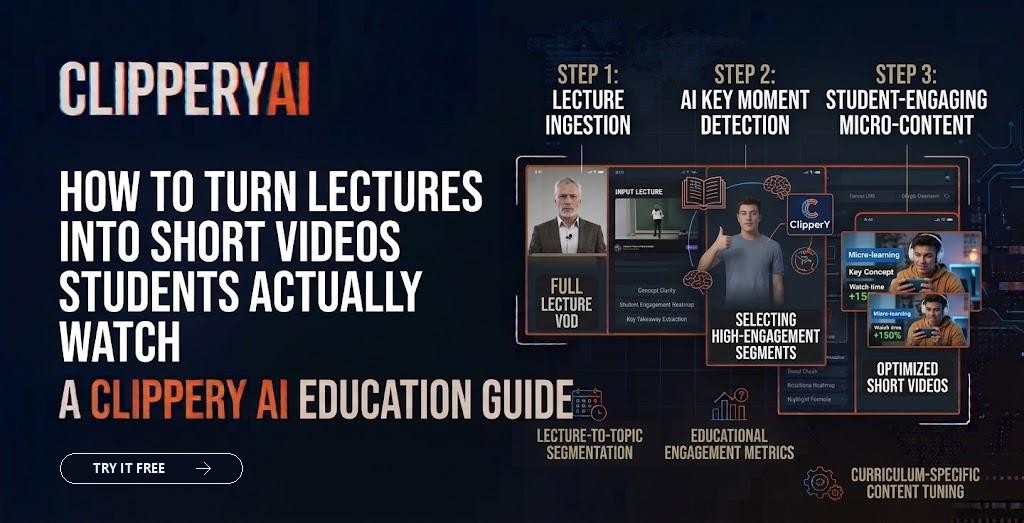
A recorded 75-minute lecture is useful in theory. In practice, students rarely rewatch the whole thing. They search for the five minutes that explain the concept they're stuck on, scrub back and forth, and give up when they can't find it.
Short clips solve that problem. Knowing how to turn lectures into short videos lets you give students focused explanations they can find and rewatch before an exam, and it gives your department, course, or channel content that can reach prospective students too. This guide covers choosing moments, editing, captions, privacy, and building a clip library that stays useful.
Why short lecture clips help
Short educational videos make specific explanations easy to find. A student reviewing for a test doesn't need the whole session. They need a clear explanation of one concept, one worked example, or one common mistake. Organizing lectures into short, labeled clips makes that possible.
Short clips also work for outreach. Universities, schools, bootcamps, and independent course creators use lecture clips on social platforms to show what a class is like, highlight an engaging instructor, or explain a topic to a wider audience.
Two goals, two kinds of clips
| Review clips for students | Public clips for outreach | |
|---|---|---|
| Audience | Enrolled students | Prospective students, the public, your followers |
| Where posted | Learning management system, private playlist | YouTube Shorts, Reels, TikTok, LinkedIn |
| Length | Whatever the concept needs | Usually shorter, with a strong hook |
| Format | Often 16:9 to keep slides readable | Usually vertical 9:16 |
| Privacy review | Important | Essential |
Decide which goal you're serving before you start, because it changes which moments you pick and how you format them.
How to turn lectures into short videos, step by step
Step 1: Record with clipping in mind
Use a microphone close to the instructor, because audio quality matters more than video quality for comprehension. If you plan to make vertical clips, frame the instructor with some space around them. Repeat student questions aloud before answering, so the question is captured on the recording without needing to show the student.
Step 2: Identify teachable moments
Good lecture clips usually fall into a few categories:
- A clear explanation of a single concept.
- A worked example from start to finish.
- A common mistake and how to avoid it.
- An analogy that makes a hard idea click.
- A real-world application of the material.
- A memorable story that connects to the lesson.
Your own lecture notes or slides are a good map. Each major slide heading or concept is a candidate clip.
Step 3: Trim to one idea per clip
Each clip should cover one concept with a clear start and finish. If understanding the clip requires something you said ten minutes earlier, include that context or add a short on-screen note. Clips that start mid-thought confuse students who are searching for a specific topic.
Step 4: Caption every clip
Captions for accessibility aren't optional. They help deaf and hard-of-hearing students, non-native English speakers, and anyone watching without sound. Many institutions also have accessibility requirements for course materials, so check with your accessibility or disability services office. Review automatic captions carefully, because technical terms, formulas, and names are often transcribed incorrectly. Our guide to captions for short-form video covers readability and placement.
Step 5: Choose the right format
For review clips that rely on slides or a whiteboard, 16:9 usually keeps visuals readable. For public clips focused on the instructor speaking, vertical 9:16 fits social feeds. If slides are essential in a vertical clip, consider placing the key formula or diagram as on-screen text. Our guide to social media video aspect ratios helps with the choice.
Step 6: Title and organize clips
Name each clip by the concept, not the date: "Supply and Demand Shifts: Worked Example" is more useful than "Lecture 7, Part 3." Group clips by unit or topic in your learning management system or playlist so students can find them quickly.
Privacy and rights to check first
Student privacy in video. If students can be seen or heard in a recording, that footage may be subject to student privacy rules, including FERPA for many US schools and colleges. Before posting publicly, remove identifiable students or get consent, and follow your institution's policies. Your registrar or legal office can clarify what's allowed.
Content rights. Lectures often include copyrighted images, videos, or textbook figures. Using them in class can be different from posting them publicly. Remove or replace third-party material in public clips, and check your institution's policies on who owns recorded lectures.
Instructor consent. If you're a department or media team clipping someone else's lectures, get the instructor's approval before publishing.
Building a weekly workflow
A repeatable routine keeps clipping from becoming another unfinished project:
- After each lecture: Note two or three timestamps where something clicked for students.
- Within a day or two: Create clips for those moments and review captions.
- Before posting publicly: Check for student faces, voices, names, and third-party content.
- Weekly: Add new clips to your course library and schedule any public clips.
Teams that already clip weekly talks can borrow ideas from other formats. Our weekly workflow for sermon clips covers sign-off steps and caption checks that also apply to lectures, and our webinar clips use case shows how hour-long sessions become many shorter pieces.
Using ClipperyAI for lecture clips
ClipperyAI turns long recordings into short captioned clips. You upload a lecture recording (MP4, MOV, WebM, MKV, or M4V) or paste a link to a video you own or have permission to use. It reads the full recording to find complete thoughts with a clear beginning and payoff, pulls in earlier context when a moment depends on it, and spreads clips across the whole session. Clips come back with word-timed captions and can be exported in 9:16, 1:1, or 16:9.
For course creators teaching a multi-step topic, the Episode Series option can cut a recording into an ordered set of connected parts, each opening with a hook and ending with a reason to watch the next.
A few details matter for educators. Video length limits depend on the plan: 30 minutes on Free, 60 minutes on Starter, and 180 minutes on Pro, so a 75-minute lecture needs the Pro plan or splitting into shorter sections. The original upload is deleted once clips are produced, and finished clips are kept for 3, 7, or 14 days depending on the plan, so download clips you want to keep. Read the privacy policy and terms for details, and only upload recordings you have the right to use.
Start with one lecture
You don't need to clip an entire semester at once. Pick one recent lecture with a concept students often struggle with, cut it into a few focused clips, caption them, and share them with your class. Their feedback will show you which kinds of clips are worth making regularly.
When you're ready, open the ClipperyAI studio and turn your next recorded lecture into short, captioned clips.
Frequently asked questions
How long should educational short videos be?
Long enough to explain one concept completely. A quick definition might take under a minute, while a worked example may need several minutes. For public social clips, shorter is usually better. For student review clips, completeness matters more than a specific time limit, as long as each clip stays focused on one idea.
Can I post recorded lectures that include students?
Be cautious. Recordings where students can be seen or heard may be protected by student privacy rules such as FERPA, depending on your institution. Before posting publicly, remove identifiable students or obtain consent, and follow your school's policies. Check with your registrar or legal office if you're unsure.
What is microlearning?
Microlearning is an approach to teaching that delivers content in small, focused units, often short videos, quizzes, or brief readings that cover one idea each. Short lecture clips fit this approach well, because students can review exactly the concept they need without rewatching an entire class session.
Do lecture clips need captions?
Captions are strongly recommended and may be required by your institution's accessibility policies. They help deaf and hard-of-hearing students, non-native speakers, and anyone watching without sound. Always review automatic captions for errors in technical vocabulary, names, and formulas before sharing clips with students or the public.
Should lecture clips be vertical or horizontal?
It depends on the purpose. Horizontal 16:9 usually works best for review clips with slides, diagrams, or whiteboards. Vertical 9:16 suits public clips on YouTube Shorts, Instagram Reels, and TikTok where the instructor speaking is the focus. Some teams create both versions from the same recording.
Who owns recorded lectures?
Ownership depends on your institution's policies and your employment or contract terms. Some institutions claim rights to course materials, while others leave them with faculty. Check your faculty handbook or intellectual property policy before posting lecture clips publicly, especially if you plan to use them commercially.