Captions for Short-Form Video: How to Write, Style and Place Them
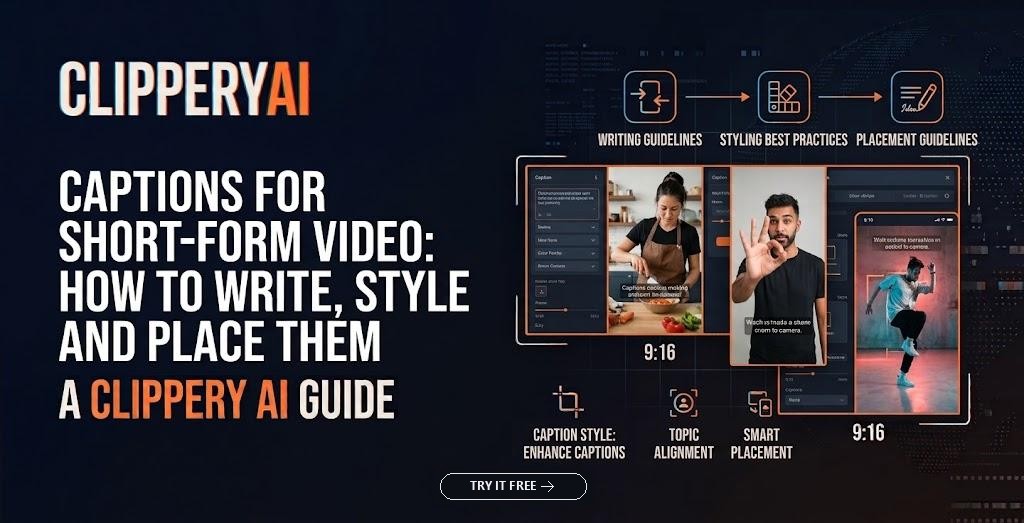
Good captions for short-form video do four things: they match what was actually said, they appear in time with the speech, they're short enough to read in a glance, and they sit where the app's buttons and text won't cover them. For TikTok, Instagram Reels and YouTube Shorts, most creators use burned-in captions so the text shows up for every viewer, and add the platform's own closed captions where that helps accessibility.
That sounds simple, but captions are where many otherwise solid clips fall apart: a mangled name, a line covering the speaker's mouth, or text running under the Like button. Here's how to get them right.
Why captions matter for short-form video
People watch short videos in places where sound isn't practical: on a train, in a waiting room, at a desk in an open office, or next to a sleeping baby. Without captions, a talking-head clip in those settings is just a person moving their lips. With them, the message still lands.
Captions also matter for accessibility. Deaf and hard-of-hearing viewers rely on them, and the Web Content Accessibility Guidelines (WCAG) treat captions for prerecorded audio as a baseline, Level A requirement for video on the web. Accessible video captions also help viewers follow fast talkers, strong accents, technical vocabulary and audio recorded in echoey rooms.
There's a quieter benefit too. When a sentence is forming on screen, people often stay to finish it. Well-timed captions give the eye something to follow during the first few seconds, when viewers are deciding whether to keep watching.
Open captions vs. closed captions (and where subtitles fit)
These terms get mixed up, so it's worth being precise:
- Captions transcribe speech for viewers who may not hear the audio. Full captions can also note meaningful sounds, like [laughter] or [phone ringing].
- Subtitles usually assume the viewer can hear and translate dialogue into another language, although many people use "subtitles for YouTube Shorts" to mean on-screen captions in general.
- Open captions, also called burned-in captions, are part of the video image. They can't be turned off and look the same everywhere.
- Closed captions are a separate text track that viewers switch on or off. Platforms may generate them automatically, or you can upload a caption file.
| Type | Strengths | Weaknesses |
|---|---|---|
| Burned-in (open) captions | Always visible; consistent style; survive downloads and reposts | Can't be edited after export; viewers can't adjust them |
| Uploaded closed captions | Viewers can toggle them; work with accessibility settings | Not supported everywhere; usually lost when a video is downloaded and reposted |
| Platform auto-captions | Fast and free | Accuracy varies; limited styling; viewers may need to turn them on |
For most short-form clips, burned-in captions are the practical default, because a single clip often ends up on several platforms.
One more source of confusion: on Instagram and TikTok, "caption" also refers to the text description posted under the video. People searching for TikTok captions or how to add captions to Reels may mean either one. The description matters for context and in-app search, but this article is about the words on screen.
How to style captions for short-form video
Keep lines short
Long-standing US captioning guidance, such as the DCMP Captioning Key, suggests roughly 32 characters per line. On a narrow vertical screen, short lines matter even more. Aim for one or two lines on screen at a time and break them at natural phrase boundaries ("if you only fix one thing / fix the first ten seconds") rather than mid-phrase.
Time captions to the words
Captions should appear as words are spoken, not a beat before or after. Early captions spoil punchlines; late ones feel like a badly dubbed film. Word-level timing, where each word or short phrase appears as it's said, suits the fast rhythm of short video.
Choose contrast over decoration
White or yellow text with a dark outline or shadow stays readable on almost any background. Use a heavy sans-serif font, skip thin or script typefaces, and make the text large enough to read on a phone held at arm's length. Test it against the brightest, busiest parts of your footage.
Emphasize sparingly
Highlighting a key word in a different color can help. If every word bounces, pops and changes color, viewers end up watching the effects instead of the speaker. One emphasis per line is plenty.
Clean up filler carefully
Verbatim captions include every "um" and false start. Light cleanup improves readability, but never changes the meaning or puts words in a speaker's mouth.
Where to put captions: the caption safe zone
Every short-form app overlays its interface on your video: username, description and audio label near the bottom, a column of buttons on the right, and sometimes tabs or search along the top. Text placed there gets covered. Your caption safe zone is the area that stays clear.
- Keep captions in the middle band of the frame, slightly below center.
- Leave clear margins on the left and right so lines never run off the edge.
- Place captions below the speaker's chin rather than across the face.
- Preview the export on a phone, ideally inside the app, before posting.
Because each app arranges its interface differently and updates it from time to time, a quick preview beats any fixed pixel measurement.
Check accuracy before you post
Automatic transcription is good but not perfect, and errors cluster where they're most embarrassing: names, numbers, jargon and words that sound alike. Picture a dentist explaining gum disease whose clip reads "period dental" instead of "periodontal," or a financial planner whose "fifteen percent" becomes "fifty percent." Both make a professional look careless.
Before posting, read the captions with sound on and check names of people, companies and products; numbers, prices, dates and percentages; industry terms and acronyms; homophones like their and there; and whether profanity should be spelled out, masked or left alone for your audience.
Avoid stacking three layers of text
A common mistake is piling burned-in captions, a large on-screen title and the platform's auto-captions on top of each other. Viewers see the same sentence twice and lose sight of the speaker. If your clip has burned-in captions, keep any title short and near the top, and don't also display the app's auto-captions as an overlay where you have that choice. Use the post description for context the captions can't carry, like who's speaking and where to watch the full video. Our guide to short-form video hooks covers how an on-screen title and the first spoken line can work together without crowding the frame.
How ClipperyAI handles captions
Every clip ClipperyAI produces comes with burned-in captions. They're word-timed, tracking speech line by line, and kept inside the frame so they never run off the edge of a vertical video. That matters most for long recordings such as webinars, lectures and conference talks, where many viewers watch with the sound off.
You should still read each clip before posting, especially for names and specialist terms, since any speech recognition can mishear them. ClipperyAI uses speech recognition and automated analysis to edit your existing footage; it doesn't create synthetic voices or video. The ClipperyAI FAQ covers uploads, privacy and how clips are made. Teams with recurring recordings, such as churches posting weekly messages, can see how caption review fits into a routine in our weekly sermon clip workflow.
A quick caption checklist
- Captions match the audio, apart from deliberate filler cleanup.
- Names, numbers and jargon are spelled correctly.
- One or two short lines at a time, broken at natural phrases.
- Text appears in sync with speech.
- High contrast and readable on a phone at arm's length.
- Nothing important sits under the app's buttons or description.
- Captions don't cover the speaker's face.
- No duplicate layers of the same text.
Make captions part of the edit
Captions decide whether a clip works for anyone watching in silence. Treat them as part of the edit rather than a final step: keep lines short, time them to the words, keep them clear of the interface, and proofread names and numbers every time. If you'd like captions handled automatically on clips cut from your own long recordings, start with ClipperyAI's free plan and review what comes back. The podcast clips page shows how captions and speaker framing work together on conversation footage.
Frequently asked questions
Should I burn captions into short-form videos?
For most short-form clips, yes. Burned-in captions appear on every platform and survive downloads and reposts. Where a platform supports uploaded closed captions, adding them as well gives viewers who rely on accessibility settings more control.
Do captions increase views on TikTok or Reels?
No platform guarantees more reach for captioned video, and ranking systems aren't public. Captions do make a clip understandable to people watching without sound and to deaf and hard-of-hearing viewers, which widens who can follow it.
Are automatic captions accurate enough?
Usually close, rarely perfect. Expect to fix proper nouns, numbers and technical terms. A one-minute review per clip catches most problems.
What size should captions be on a vertical video?
There's no single correct size. Make text large enough to read comfortably on a phone at arm's length, keep each line short, and confirm by previewing on an actual phone.
Should captions describe sounds?
For full accessibility, yes, when a sound affects understanding, such as [audience laughs] or [alarm beeps]. For most talking-head clips, accurate speech captions cover the essentials.