Product Demo Video Clips: Turn Long Demos Into Short Sales Videos
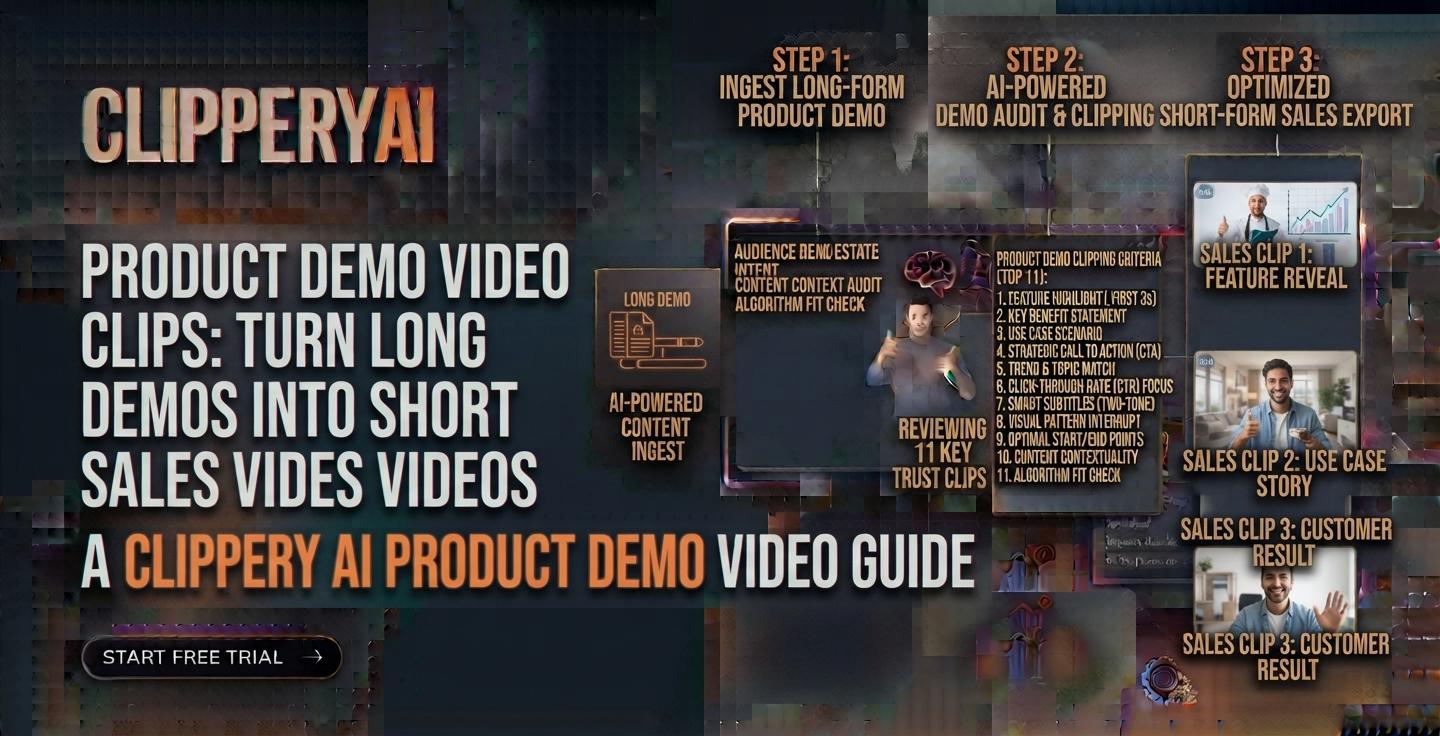
Your team ran a 45-minute product demo. The recording is on YouTube, linked from your website, and analytics show most viewers leave in the first five minutes. Meanwhile, the feature that wins most deals appears at minute 31.
Buyers do want to see your product. They just want to see the part that matters to them, fast. Short demo clips let them do that.
Which recordings to clip
Most software teams already have more demo footage than they realize:
- Recorded live demos and demo webinars
- Product launch and release webinars
- Founder or product manager walkthroughs
- Customer onboarding sessions (with sensitive data hidden)
- Conference talks that include a product demo
Recorded sales calls are different. Prospects and customers didn't agree to appear in your marketing, so keep those for internal training unless you have their clear permission.
One feature, one problem, one clip
The most common mistake is clipping by feature name: "Here's our dashboard." Buyers don't search for your dashboard. They search for their problem. Build each clip in three parts:
- The problem (about 5 seconds). "If your team still builds the weekly report by hand..."
- The demo (20 to 40 seconds). Show the feature solving exactly that problem, nothing else.
- The result (5 to 10 seconds). "That's the full report, ready in under a minute."
A clip built this way makes sense to someone who has never heard of your product, which is who most of your social viewers are.
Pick the right format for screen recordings
Screen recordings don't behave like talking-head video. Cropping a full-width app into a tall vertical frame can make text impossible to read.
| What's on screen | Best format | Why |
|---|---|---|
| The presenter talking about a problem or result | 9:16 vertical | Works naturally in Reels, Shorts and TikTok |
| A full-screen walkthrough of your app | 16:9 landscape | Keeps menus and text readable |
| A mix of presenter and screen | 1:1 square | Balances both and works in LinkedIn and Facebook feeds |
Our guide to social media video aspect ratios covers each platform in more detail.
Where demo clips do the most work
- Sales follow-up emails. After a call, send a 40-second clip of the exact feature the prospect asked about.
- Feature and pricing pages. A short clip next to each feature description shows instead of tells.
- LinkedIn. Clips that open with a familiar business problem get attention from buyers scrolling between meetings.
- Help center articles. A 30-second clip beside written steps cuts support tickets.
- Release announcements. One clip per new feature is easier to share than a full release webinar.
- Retargeting ads. Visitors who left your pricing page can see the feature most likely to bring them back.
Make clips that work without context
A clip taken from the middle of a demo often depends on things said earlier. Before you publish, check that:
- The product or feature is named in the first sentence.
- Phrases like "as I mentioned earlier" are cut out.
- Small UI text is readable on a phone, using zoom or a larger format if needed.
- Captions are on, since many viewers watch muted at work.
- No real customer data is visible. Use a demo account for anything you plan to clip.
A clip map for a 30-minute demo
| Section of the demo | Clip | Where to use it |
|---|---|---|
| Opening (0 to 4 minutes) | "The problem we solve" | LinkedIn, homepage |
| Feature A (4 to 10 minutes) | Problem, demo and result for feature A | Feature page, sales emails |
| Feature B (10 to 16 minutes) | Problem, demo and result for feature B | Feature page, retargeting ads |
| Integrations (16 to 20 minutes) | "Works with the tools you already use" | Pricing page, sales emails |
| Customer story (20 to 25 minutes) | A short result in the customer's words, with permission | Social posts, case study page |
| Q&A (25 to 30 minutes) | One clip per strong question | FAQ page, help center |
That's six or more clips from one recording, each with a clear job.
How ClipperyAI helps
Upload your demo recording or link your own video, and ClipperyAI finds moments where the presenter explains a complete idea, trims them, and adds a hook and earlier context when a clip needs it. You can export each clip in 9:16, 1:1 or 16:9, so screen-heavy sections stay readable, and every clip gets word-timed captions. The Episode series option can also split a full demo into ordered, connected parts, which works well for a short feature tour series. ClipperyAI only edits your own footage and doesn't generate synthetic video or voices. See how it works or compare plans and pricing.
Key takeaways
- Your existing demo recordings are a library of short sales clips.
- Open every clip with the buyer's problem, not your feature name.
- Use landscape or square for screen-heavy sections so text stays readable.
- Put clips where buyers make decisions: sales emails, pricing pages and help docs.
- Keep recorded sales calls internal unless you have permission.
Frequently asked questions
How long should a product demo clip be?
Aim for 30 to 60 seconds. That's enough to show one problem, one feature and one result. Longer walkthroughs belong in help docs or a full demo video.
Can I use clips from recorded sales calls?
Only with clear permission from everyone on the call. Without it, keep sales call recordings for internal training and coaching.
Should demo clips show the presenter or the product screen?
Both have a place. Show the presenter when explaining the problem or result, and show the screen when the feature itself is the point. Square clips that include both work well in most feeds.
How many clips can I get from a 30-minute demo?
Usually five to ten, depending on how many features and questions the demo covers. A good rule is one clip per feature and one per strong audience question.
Do product demo clips need captions?
Yes. Many people watch at work with the sound off, and captions also help viewers follow technical terms.