How to Make Twitch Highlights Without Rewatching Your Entire VOD
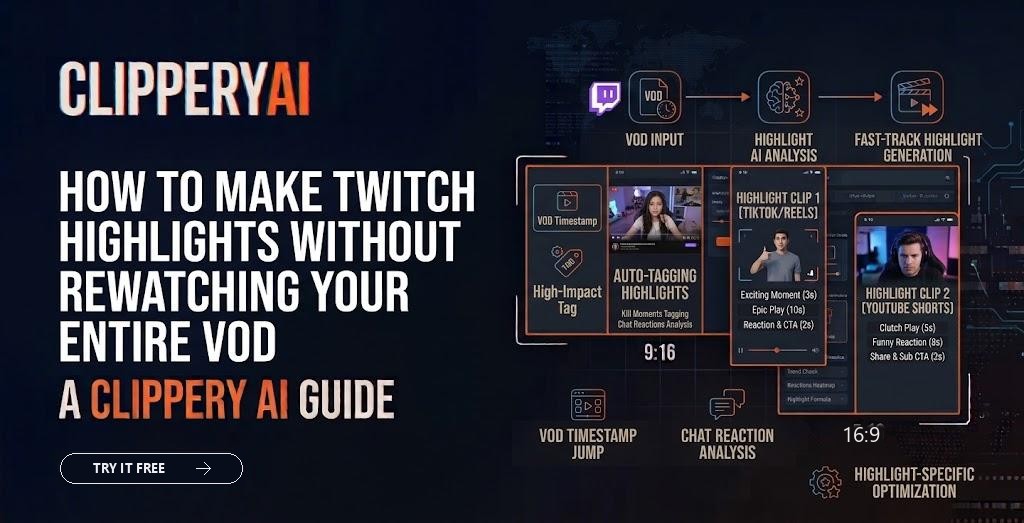
A four-hour stream might contain ten minutes of gold: the clutch play, the chat moment that made you laugh so hard you had to pause, the rant that got everyone typing. Finding those ten minutes means scrubbing through four hours of footage, and by the time you've done it, the next stream is starting.
This guide explains how to make Twitch highlights inside Twitch, how highlights differ from clips, and how to turn your streams into short vertical videos that can reach new viewers on TikTok, YouTube Shorts, and Instagram Reels.
Twitch clips vs. highlights: what's the difference?
Twitch uses both terms, and they mean different things.
| Clips | Highlights | |
|---|---|---|
| Who makes them | You or your viewers | You (the channel owner) or authorized editors |
| Length | Short, usually up to about a minute | Can be much longer |
| Purpose | Capture a single moment quickly | Save and showcase a portion of a past broadcast |
| Where they come from | Live stream or past broadcast | Past broadcasts (VODs) |
Clips are great for capturing single moments in real time, especially when chat clips them for you. Highlights let you save longer stretches of a stream to your channel, which is important because past broadcasts are only stored for a limited time depending on your account type.
How to make Twitch highlights in Twitch
The exact menus change from time to time, but the general process works like this:
- Make sure past broadcasts are enabled in your stream settings, so your streams are saved as VODs.
- Open the Video Producer from your Creator Dashboard. This lists your past broadcasts, highlights, and uploads.
- Choose a past broadcast and select the option to create a highlight.
- Set the start and end points using the timeline.
- Add a title, description, and tags, then publish.
Highlights stay on your channel longer than standard past broadcasts, which makes them the right choice for preserving your best streams. If you want to keep full streams permanently, download your Twitch VOD from the Video Producer before it expires and store it yourself.
Why highlights alone aren't enough to grow
Twitch highlights mostly serve people who already follow you. They're helpful for viewers who missed a stream, but they don't do much to reach new audiences, because most discovery on Twitch happens through live browsing.
Short-form platforms work differently. TikTok, YouTube Shorts, and Instagram Reels recommend videos to people who don't follow you yet. Turning stream highlights into short vertical clips gives each stream a second life with viewers who might never find you on Twitch otherwise.
Finding the best moments in a long stream
Before you clip, know what you're looking for. Strong moments for gaming clips for TikTok and Shorts tend to fall into a few categories:
- Reactions: genuine surprise, frustration, or celebration.
- Skill moments: a clutch win, an impossible shot, a speedrun trick.
- Fails: mistakes that are funny on their own.
- Stories and opinions: Just Chatting segments where you tell a story or share a hot take.
- Chat interactions: moments where your response to chat is funny or memorable, as long as viewers can understand the context.
Use your own markers during the stream. Many streamers drop a stream marker whenever something good happens, so they can jump straight to it later. Viewer clips are another useful signal: if chat clipped a moment, it probably landed.
Turning stream highlights into vertical clips
Choose a vertical layout
Stream footage is usually 16:9, with gameplay filling most of the screen and a facecam in a corner. In a 9:16 vertical frame, you need to decide what matters most. Common layouts stack the facecam above the gameplay, crop to the action, or focus on you during talking segments. Our guide on converting horizontal video to vertical walks through the cropping and reframing options.
Trim tight
Live streams have natural downtime. A clip that starts with ten seconds of loading or menu navigation loses viewers before the moment arrives. Start as close to the action as you can while keeping enough setup to make the payoff clear.
Add captions and a hook
Captions matter for talking segments and reactions. For gameplay moments, a short line of on-screen text explaining what's about to happen can help, like "Last one alive, one HP left." For ideas, see our guide to short-form video hooks.
Consider multi-part clips for long stories
Some stream moments are too long for one short clip, like a full boss fight or a long story. Splitting them into parts can work if each part ends on a reason to watch the next. Our guide on splitting a long video into parts for TikTok covers how to do this well.
Using ClipperyAI for stream highlights
ClipperyAI turns long recordings into short, captioned clips. You download your VOD and upload the file, or paste a link to a video you own. It reads the recording, picks complete moments, and returns clips reframed around whoever is talking, with word-timed captions and a hook up front, in 9:16, 1:1, or 16:9.
Be aware of how it chooses moments. ClipperyAI considers what is said to decide where a moment starts and ends, so it works best on streams where you talk through what's happening, such as commentary, reactions, and Just Chatting segments. Long silent stretches of gameplay give it less to work with. Its Episode Series option can also cut a recording into an ordered set of connected parts that each open on a hook and end on a cliffhanger.
Stream length matters for plan choice. The Free plan accepts videos up to 30 minutes, Starter up to 60 minutes, and Pro up to 180 minutes, so longer streams may need to be split into shorter sections before uploading. Original uploads are deleted once your clips are produced. Learn more on the stream highlights use case page.
A simple weekly workflow for streamers
- During each stream: Drop markers at good moments.
- After the stream: Create a Twitch highlight of the best stretch, and download the VOD sections you want to clip.
- Next day: Turn those sections into vertical clips and review them for context and captions.
- Through the week: Post clips to Shorts, TikTok, and Reels on a steady schedule, and mention when you stream next.
Only post footage you have the rights to use. Game publishers have their own policies on streaming and posting gameplay, and copyrighted music playing on stream can cause problems on other platforms. If you also stream on YouTube, see our guide on turning a long YouTube video into Shorts.
Make every stream work twice
Twitch highlights preserve your best streams for your community. Short vertical clips help new people find you. Doing both means each stream keeps working long after you go offline.
When you're ready to turn a VOD into clips without rewatching it, open the ClipperyAI studio and upload your recording.
Frequently asked questions
How long do Twitch VODs stay up?
Past broadcasts are stored for a limited time that depends on your account type, and Twitch has adjusted these rules over the years. Check the current storage period in your creator settings. If you want to keep a stream, create a highlight or download the VOD before it expires.
Can viewers make highlights of my stream?
Viewers can create clips of short moments, but highlights are created from past broadcasts by the channel owner or people you've given editor permissions to. If you want help making highlights, you can assign a trusted moderator or editor the appropriate role in your channel settings.
How do I download my Twitch VOD?
Open the Video Producer in your Creator Dashboard, find the past broadcast, and use the download option in its menu. Download soon after streaming, because past broadcasts expire after a set period. Larger streams take longer to prepare, so you may need to wait before the download is ready.
Can I post Twitch clips on TikTok and YouTube Shorts?
Generally, yes, if the content is yours and you follow each platform's rules. Be careful with copyrighted music and check the game publisher's content policies, since some limit how gameplay can be used. Reformat clips to vertical and add captions so they suit short-form feeds.
What's the best layout for vertical gaming clips?
It depends on the moment. For reactions and talking segments, focus on your facecam. For skill moments, crop to the action. Many streamers stack the facecam above gameplay so viewers see both. Test a few layouts and keep the one your audience watches through most often.
Do I need to talk a lot on stream to get good clips?
It helps. Commentary, reactions, and explanations give viewers context and give clips a clear beginning and payoff. Silent gameplay can still produce great clips, but it usually needs on-screen text to explain what's happening. Tools that choose moments based on speech work best on streams with regular talking.